Show them their logo on the garment. Before they ask.
Pick a product from your catalogue, place the client’s logo on the front and the back, and attach the visuals to the quote in one click. No designer queue and no separate email.
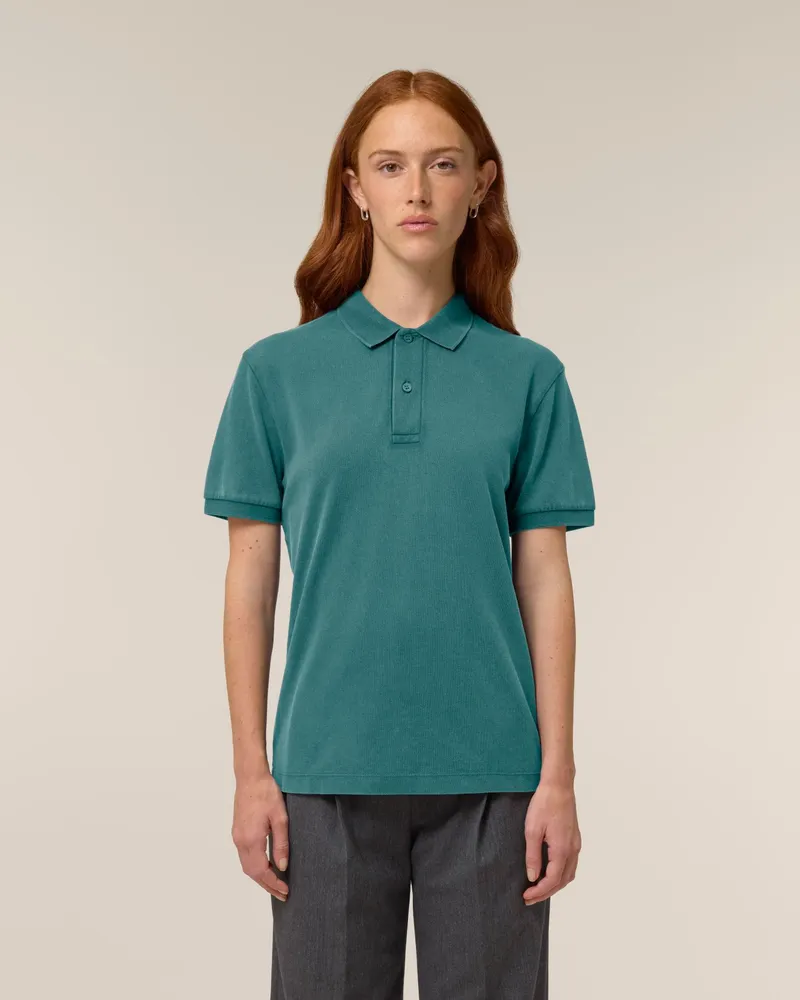
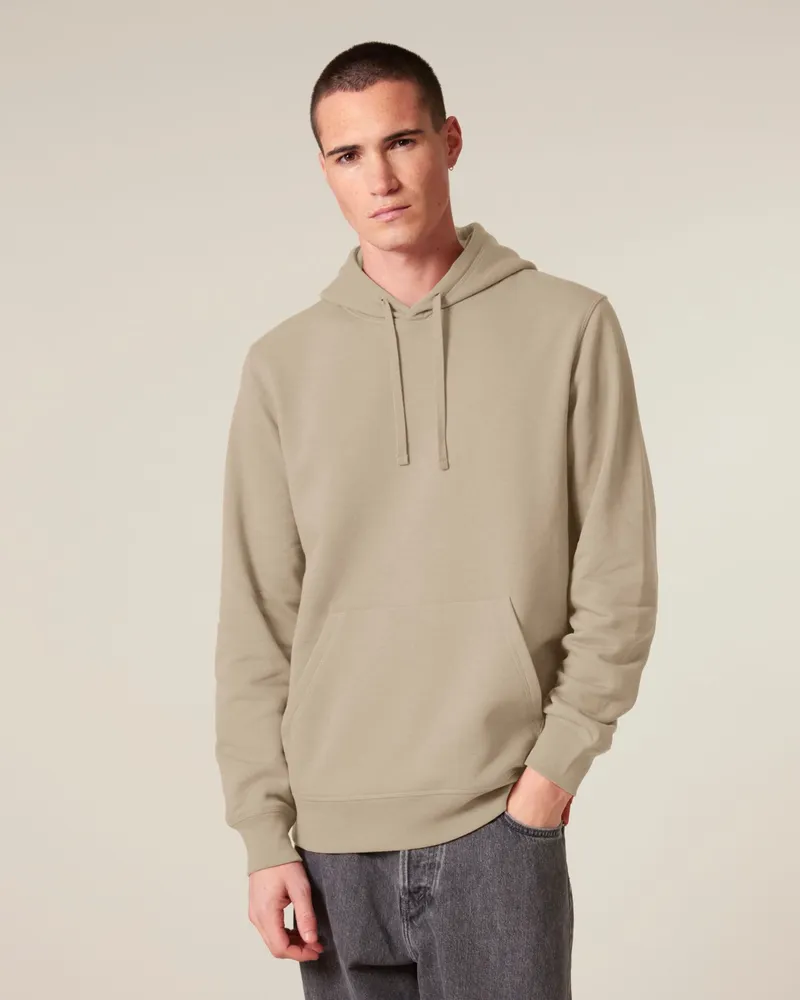
The mockup arrives with the quote, not after it.
Every day between “can you show me?” and the answer is a day the client can talk to someone else. Put the picture in the same place as the price and the conversation keeps moving.
- 01Enquiry arrives
A client asks what their logo would look like on a hoodie.
- 02Brief goes to a designer
Logo, garment and placement are re-typed into an email or a chat.
- 03The client waits
Momentum fades while the request sits in a queue.
- 04Mockup arrives on its own
Sent separately from the price, so it is easy to lose.
- 05Quote follows, then a chase
The visual and the number finally meet, days later.
- 01Enquiry arrives
The same question, but you are already in the quote.
- 02Pick the garment
Search your catalogue; the product photos are already there.
- 03Drop the logo on front and back
Place it, size it, centre it. No designer queue.
- 04Quote goes out with the visuals
Every decorated view is attached in one click.
- 05Yes, then proof
Once they accept, artwork approvals take over for production.
Try it. Then flip it over.
Choose a garment and colour, drop a logo on the front, switch to the back and place another, then add both to the quote. This is the same flow your team uses, with sample artwork.
- Product
- Logos
- 3Design
- 4Download
Drag the logo, or focus it and use the arrow keys.
Every decorated view goes on the quote in one click.
Your suppliers’ garments, decorated.
The studio works from the product photos already in your catalogue, so a client sees the actual jacket, polo or hoodie they are buying, in the colour they are choosing.
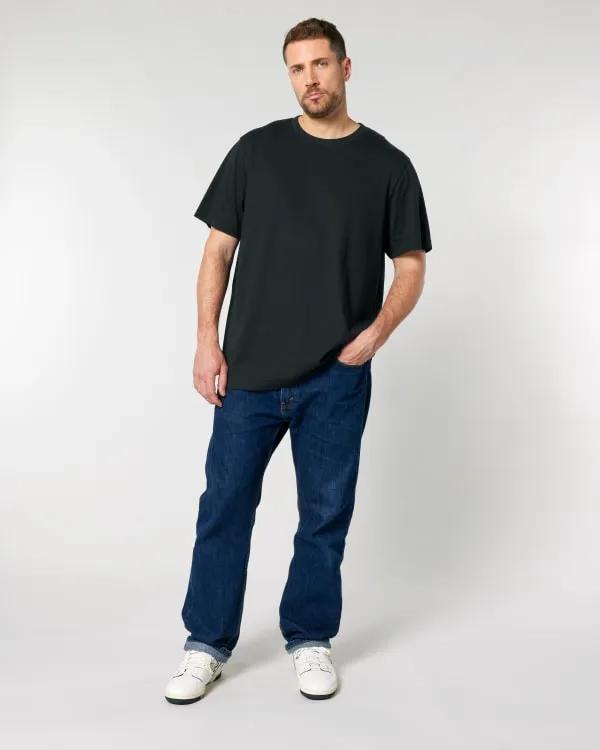
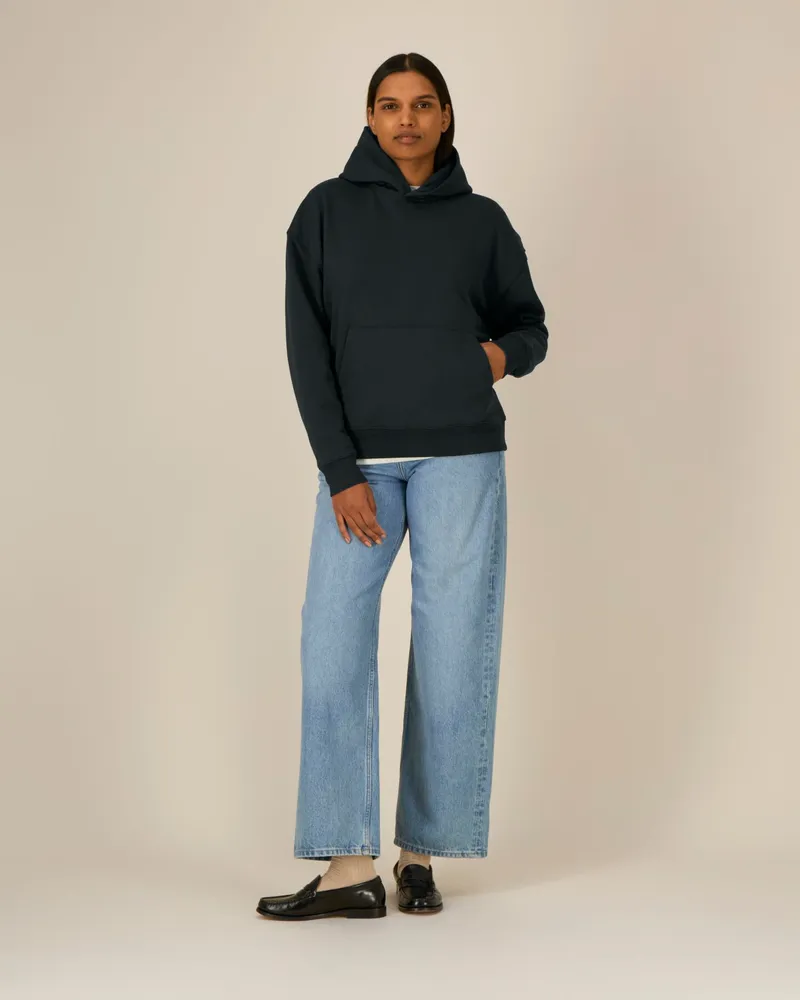
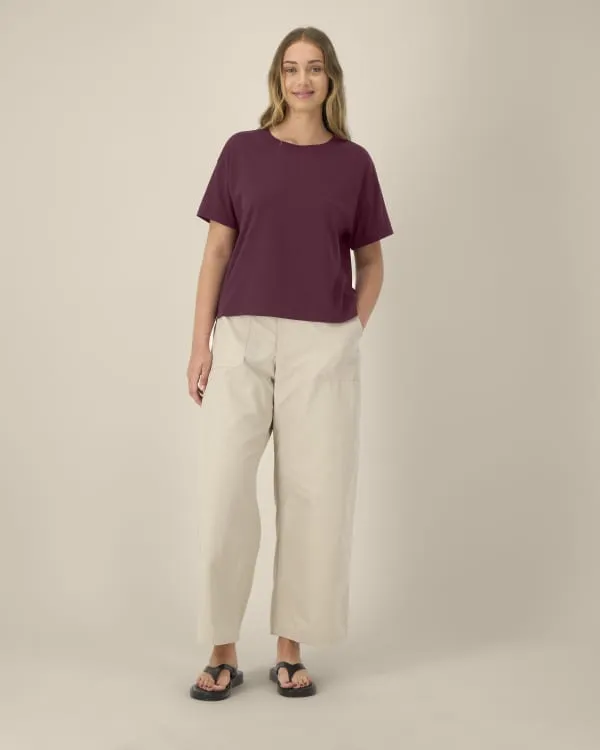
Catalogue photography from Stanley/Stella. Logos are sample artwork.
Decorate every side of the job.
Most orders are not just a left-chest logo. Each view has its own image and its own logos, so the back print is on the quote as clearly as the front.
Catalogue photos rarely label which image is the back, so you choose it from the product’s own images, or upload one. The studio flags any view that is still missing an image before you place anything on it.
- Separate template and logos per view
- Copy a logo to the other side in one click
- Centre guides, arrow-key nudging and duplicate
- Only decorated views are generated and attached
Not a generic image generator.
Mockups for quoting have to be fast, faithful to the placement you chose, and easy to attach. That is what this is built around.
Your catalogue, not stock images
Search the products you already sell and decorate the supplier photos. No photo? Upload your own of the garment.
Front, back and side
Each view has its own image and its own logos. Copy a logo to the other side and fine-tune it there.
Exact placement
Screen print, DTG and heat transfer mockups are exported exactly as you placed them. What you approve on screen is what the client sees.
AI refinement, when you want it
Embroidery gets AI thread texture; you can switch it on for any type. If AI is unavailable for a view, you keep the exact layout instead of losing the batch.
Logo tools that matter
Invert to white ink for dark garments, remove a white box from a logo, centre it, nudge it with the arrow keys, duplicate it.
Straight onto the quote
Attach every decorated view to a quote, keep them in the gallery for reuse, or download them as PNGs.
Mockups sell the job. Proofs approve it.
A mockup is an indicative visual, made to help a client say yes. It is not the file that goes to production. Once the quote is accepted, the artwork goes through approvals, where the client signs off the exact version and it is recorded on the job.
AI Mockups questions, answered.
Which products can I use?
Any product in your catalogue that has a photo, including the supplier images already synced into BrandKit. If you have a photo of a garment that is not in your catalogue, upload it as the template.
Can I decorate the front and the back?
Yes, and the side. Each view has its own template image and its own logos. Catalogue photos rarely say which one is the back, so you pick it from the product’s images, or upload one, and the studio tells you when a view is still missing.
What logo files can I use?
PNG, JPG or WebP, ideally a PNG with a transparent background. Design files such as AI, EPS, PSD, SVG and PDF need exporting to a PNG first; the studio tells you when you upload one.
Does it use AI?
Only where it helps. Screen print, DTG and heat transfer are exported exactly as placed. Embroidery uses AI to add thread texture, and you can turn AI refinement on for any decoration type. If the AI step fails for a view, you keep the exact layout for it.
Is a mockup a production proof?
No. Mockups are indicative visuals for quoting and helping clients say yes. When a job is confirmed, the approved artwork goes through the proofing flow, which records exactly what the client signed off.
Where do the mockups end up?
On the quote, where your client sees them when they open it, in the gallery so you can reuse them, and as PNG downloads. Attaching a mockup to a quote includes every decorated view, front and back.
Put the logo on the garment while they’re still talking to you.
Build your next quote with the mockup already on it.